
Appearance
Attachments
Any entry can carry files. Use the paperclip button in the editor to attach one or more files to the entry you're writing.
How attachments display
Organizer shows attachments inline where it can:
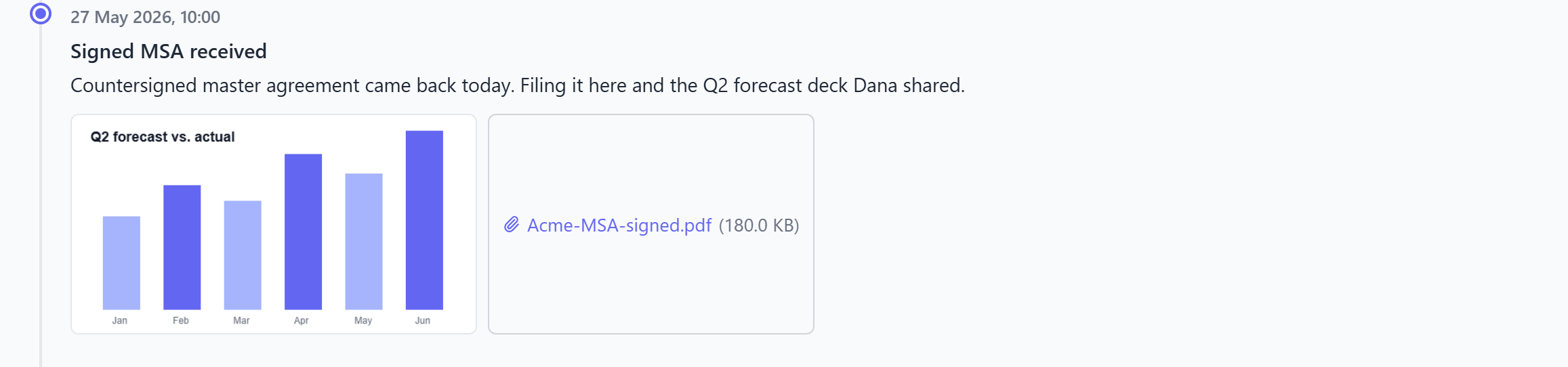
- Images preview directly in the entry.
- MP4 videos play inline.
- Everything else (PDFs, spreadsheets, archives, …) appears as a labelled download link showing the file's name.
Where attachments are stored
Attachments are stored with your data on this device — see Storage & backup. They are included in Export, so a JSON backup is a complete copy: timelines, entries, and their files.
TIP
Because attachments travel inside the export file, moving to a new device with Export → Import brings every file along with it — nothing is left behind.
Tips
- Attach the source, not just a description — e.g. the signed PDF, the screenshot of the error, the invoice — so the timeline is the single record.
- Large files make exports larger. If you attach a lot of big media, keep an eye on backup file sizes.