
Appearance
Tags & search
Two features keep things findable as your timelines grow: tags for grouping timelines, and search for jumping straight to any entry.
Tags
Tags are labels you put on timelines (not on individual entries). They're how you group related timelines without nesting them.
Adding tags
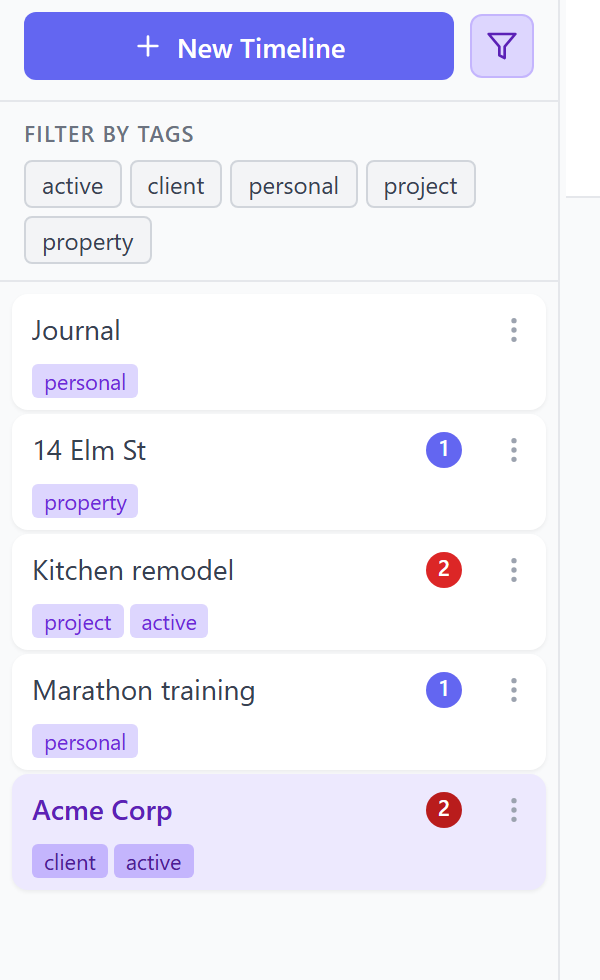
Open a timeline's ⋮ menu in the sidebar and add one or more tags — for example client, personal, 2026, or urgent.
Filtering by tag
Click the filter icon next to New Timeline at the top of the sidebar to reveal your tags, then pick one or more to narrow a long list down to just the ones you care about right now (e.g. show only client timelines). The filter icon shows a count while any filter is active; click a tag again — or Clear — to remove it.
Tagging tips
- Prefer a few broad tags (
client,project,archive) over many narrow ones. - Use tags for cross-cutting themes — a status like
active/on-hold, or a category that spans many timelines. - Combine with names: a timeline named Acme Corp tagged
clientactiveis instantly filterable.
Search
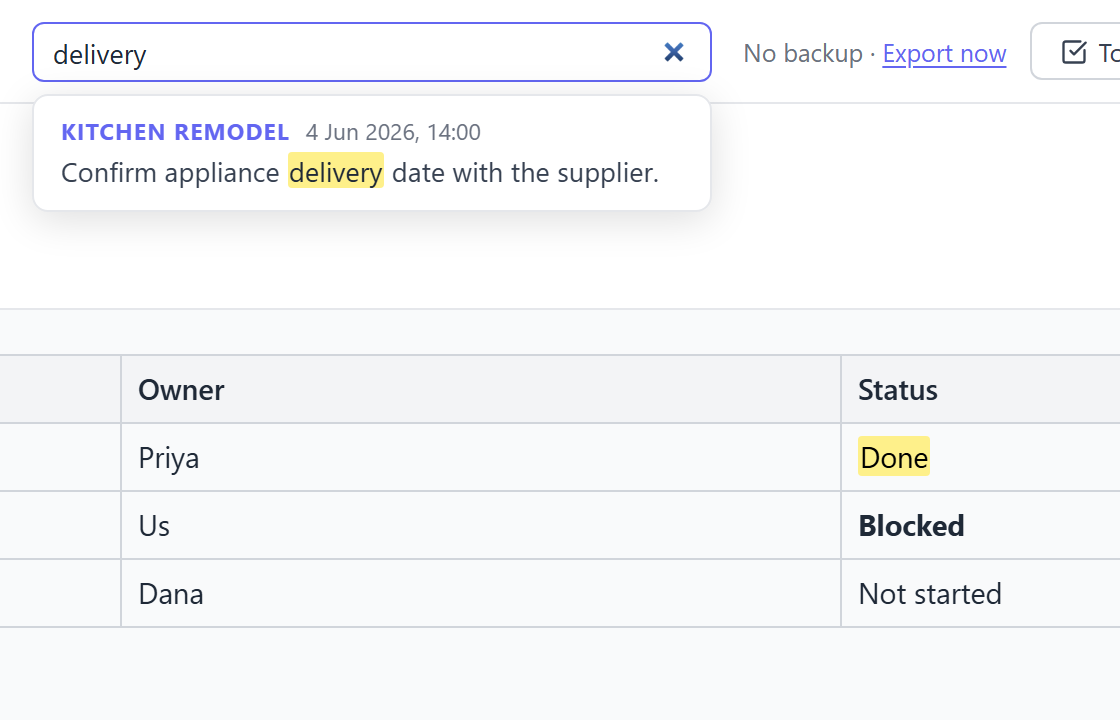
The search box in the header looks across your timelines and entries by their content, so you can jump to something even if you don't remember which timeline it's in.
- Start typing to see matches.
- Select a result to jump straight to it.
- On mobile, the search box is available in the slide-out menu.
TIP
Search reads the text of your entries — so writing clear, keyword-rich notes makes everything easier to find later.
Tags vs. search — which to use?
- Use tags to organise: carve your sidebar into meaningful groups you return to often.
- Use search to retrieve: find one specific thing right now.